

WordPress forms can attract automated spam bots. Bots primarily target contact forms, newsletter forms, booking forms, and other submission forms.
Traditional CAPTCHA systems can reduce automated submissions, but they can also add another step for legitimate visitors. Cloudflare Turnstile offers a different approach. It checks visitors in the background and requests an interaction only when Cloudflare determines it’s needed.
If you want to add Cloudflare Turnstile to a WordPress form, you don’t need to build the integration from scratch. Gutena Forms includes built-in Cloudflare Turnstile support, giving you a practical way to add CAPTCHA alternative protection and reduce automated form.
In this guide, you’ll learn how Cloudflare Turnstile works, how it compares with reCAPTCHA, and how to add it to Gutena Forms. You’ll also learn how to troubleshoot common Turnstile verification errors.
What Is Cloudflare Turnstile?
Cloudflare Turnstile is a CAPTCHA alternative that protects websites and forms from automated traffic without relying on traditional CAPTCHAs such as solving puzzles.
Turnstile can work on websites that do not use Cloudflare as their CDN. You can add it to a WordPress website independently of Cloudflare’s other services.
For online forms, the practical benefit is straightforward: Turnstile adds a layer of bot verification without requiring every visitor to solve an image or text puzzle.
How Does Cloudflare Turnstile Work?
Cloudflare Turnstile uses two parts: a client-side widget and server-side token validation.
The basic process looks like this:
- A visitor opens a page containing your form.
- The Turnstile widget runs in the visitor’s browser.
- Turnstile verifies the request and generates a token.
- The token is submitted with the form.
- The server sends the token to Cloudflare’s Siteverify API.
- Cloudflare returns a success or failure response.
- The form processes the submission only after successful verification.
The server-side step is essential. Cloudflare states that simply displaying the Turnstile widget does not provide complete protection. Tokens can be forged, expire after five minutes, and can only be validated once.
With Gutena Forms, the plugin handles the integration so you don’t have to write the client-side widget and server-side validation yourself.
Cloudflare Turnstile Widget Modes: Managed, Non-Interactive, and Invisible
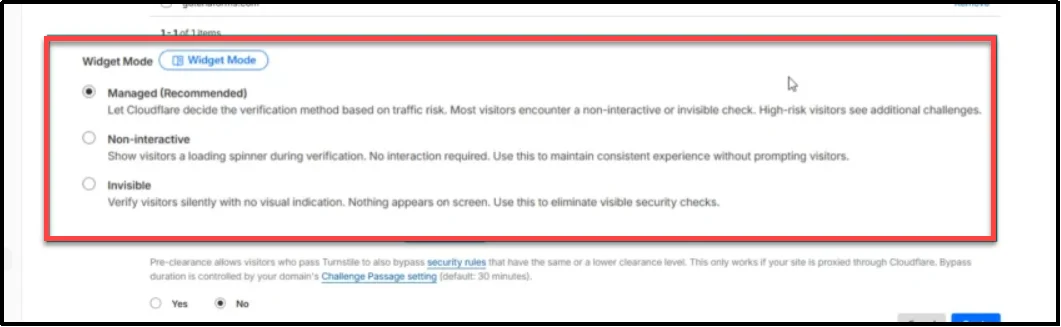
When you create a Turnstile widget, Cloudflare lets you choose between three modes: Managed, Non-Interactive, and Invisible.
Managed: Cloudflare evaluates browser and request signals to determine whether a visitor needs additional verification. Most visitors won’t need to interact with the widget, but Cloudflare may present an interactive challenge when necessary.
Non-Interactive: The widget remains visible while Turnstile performs its browser-based checks, but visitors do not need to interact with it.
Invisible: The widget runs in the background without displaying a visible verification element.
For a typical WordPress form, Managed mode is a practical starting point because Cloudflare decides whether an interaction is necessary. Cloudflare currently recommends Managed mode for a simple adaptive configuration.
Why Use Cloudflare Turnstile for WordPress Forms?
Turnstile is a useful option when you need WordPress form spam protection without asking every visitor to solve a traditional CAPTCHA puzzle. It helps protect contact forms, newsletter signups, and other online forms from automated submissions.
Its main advantages include:
- Lower interaction: Most visitors can complete the verification without solving a visual puzzle.
- Bot protection: Turnstile evaluates browser and request signals to identify automated traffic.
- Multiple widget modes: You can choose Managed, Non-Interactive, or Invisible behavior.
- Independent deployment: You don’t need to route your entire website through Cloudflare to use Turnstile.
- WordPress compatibility: Supported form plugins can handle the widget and server-side verification for you.
- Privacy considerations: Cloudflare describes Turnstile as a privacy-focused CAPTCHA alternative. However, you should review Cloudflare’s current Turnstile Privacy Addendum and privacy documentation to understand its data processing practices. Your site’s GDPR obligations also depend on your implementation, privacy notices, and other data processing activities.
Turnstile also has a Free plan. Cloudflare currently lists the Free plan as supporting up to 20 widgets, all widget types, unlimited challenges, and up to 10 hostnames per widget.
That makes it accessible for many WordPress sites that need basic form protection without adding another paid service.
How to Add Cloudflare Turnstile to WordPress Forms with Gutena Forms
The Cloudflare Turnstile integration takes a few steps. You first create a widget in Cloudflare, copy the generated keys, connect those keys to Gutena Forms, and then enable Turnstile for your form.
Step 1: Install and Activate Gutena Forms
First, install Gutena Forms on your WordPress website.
From your WordPress dashboard:
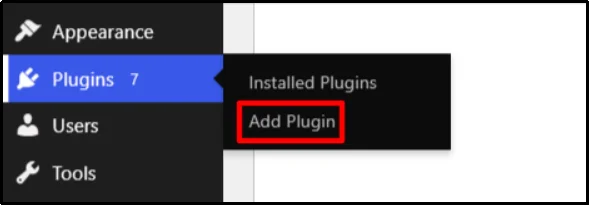
- Go to Plugins → Add Plugin.
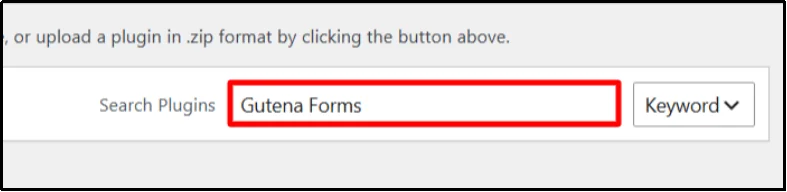
- Search for Gutena Forms.
- Click on Install Now.
- Click Activate.
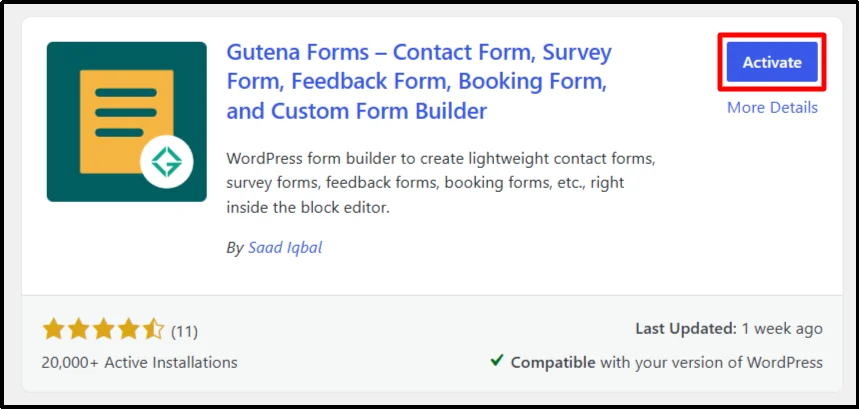
Gutena Forms works natively in the WordPress block editor, where you can create forms using its dedicated form block.
If you already use Gutena Forms, you can skip this step and move directly to the Cloudflare setup.
Step 2: Create a Turnstile Widget in Your Cloudflare Dashboard
Before connecting Turnstile to WordPress, you need a Cloudflare Turnstile widget.
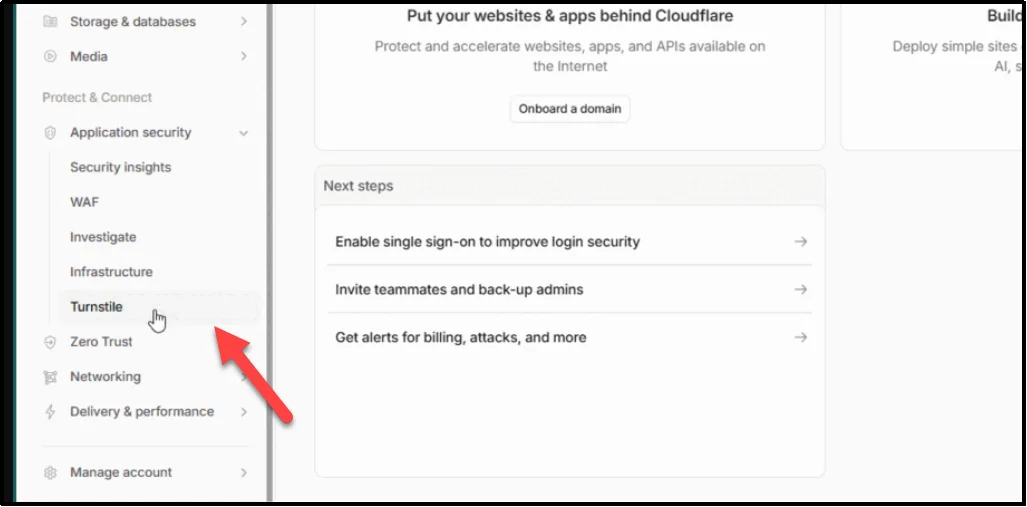
1. Sign in to your Cloudflare dashboard and open Turnstile.
2. Click Add widget to create a new widget.
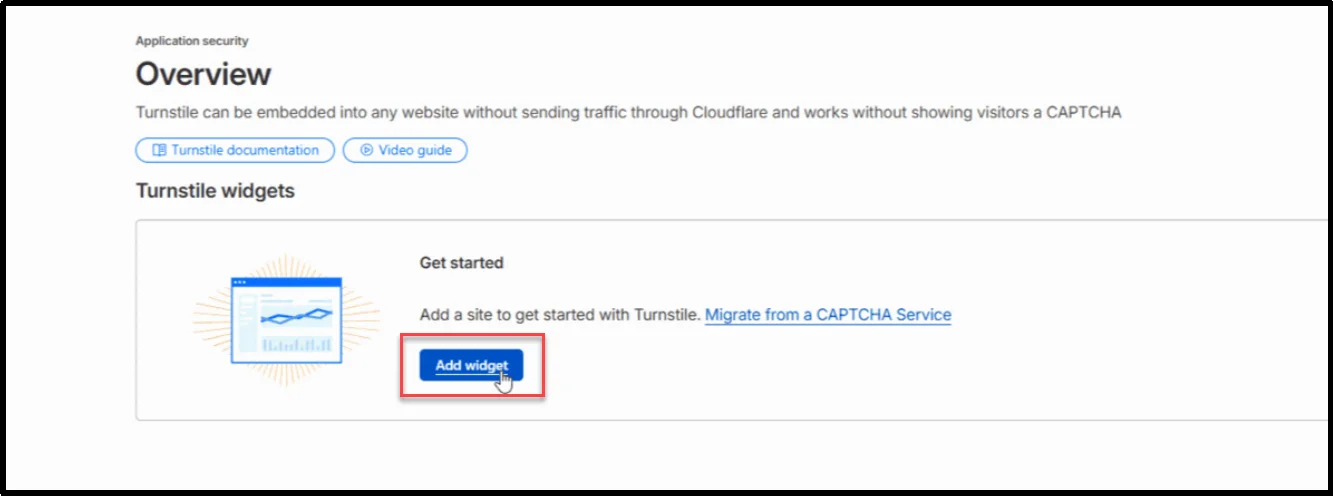
3. Enter a name for the widget.

4. Add the hostname where your WordPress form will run.
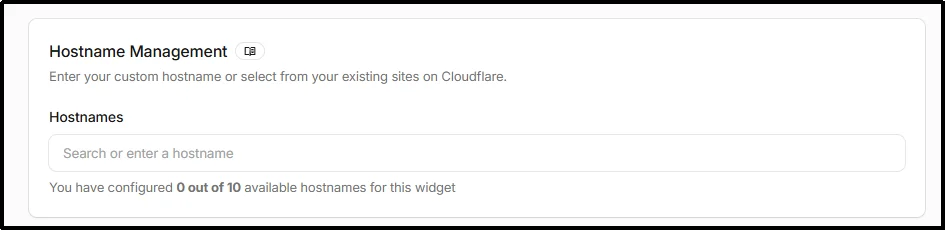
5. Choose a widget mode, such as Managed.
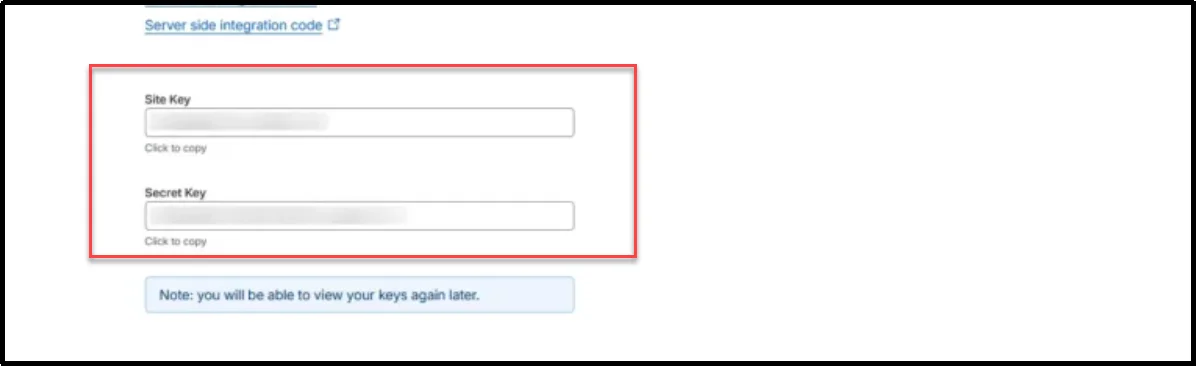
6. Create the widget and copy the generated Site Key and Secret Key.
7. Click on the Create button to add a widget.
Cloudflare requires an authorized hostname for a standard widget. Enter the hostname where your WordPress form will run, such as example.com or forms.example.com, rather than entering a full page URL.
For example, if your form is located at:
your authorized hostname would normally be:
example.com
For a standard WordPress contact form, Managed mode is a sensible choice. Cloudflare can decide whether the visitor needs an additional interaction instead of forcing every visitor through the same challenge flow.
Check out our guide to learn the 10 Contact Form best practices to increase conversions in 2026.
After you create the widget, Cloudflare provides your Site Key and Secret Key.
Step 3: Copy Your Cloudflare Turnstile Site Key and Secret Key
Your Turnstile widget generates two keys.
Site Key
The Site Key is the public identifier used by the widget on your website.
Secret Key
The Secret Key is a private credential used for server-side token validation.
Cloudflare specifically distinguishes the Site Key as the public key and the Secret Key as the private key used to validate tokens on the server.
Copy both values from the Cloudflare dashboard.
Keep the Secret Key private. Don’t publish it in page content, screenshots, frontend JavaScript, Git repositories, or other publicly accessible locations.
Step 4: Connect Cloudflare Turnstile to Gutena Forms
Now connect the keys to Gutena Forms.
From your WordPress dashboard:
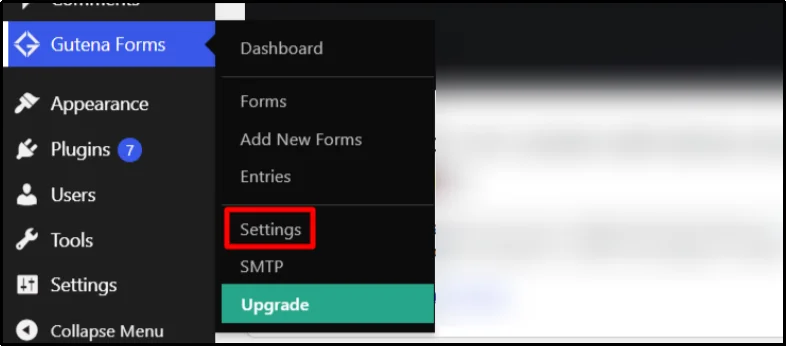
- Go to Gutena Forms → Settings.
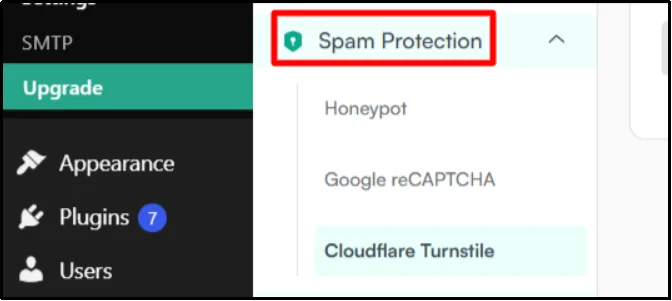
- Under Spam Protection, select Cloudflare Turnstile.
- Enable Cloudflare Turnstile by toggling on.
- Paste your Site Key into the Site Key field.
- Paste your Secret Key into the Secret Key field.

- Click Save Settings.
Gutena Forms applies this configuration to all forms by default. This approach is useful if you have several forms that need the same spam protection.
You can also enable Turnstile and manage its settings for an individual form in the block editor.
Step 5: Enable Turnstile on Your Form in the Block Editor
If you want to configure Turnstile for a specific form:
- Go to Gutena Forms → Forms.
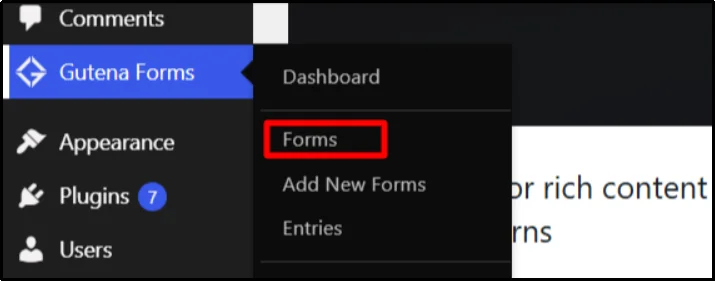
- Open the form you want to protect.
- Click the main Form block in the WordPress block editor to open the settings panel on the right.
- Find the Cloudflare Turnstile section.
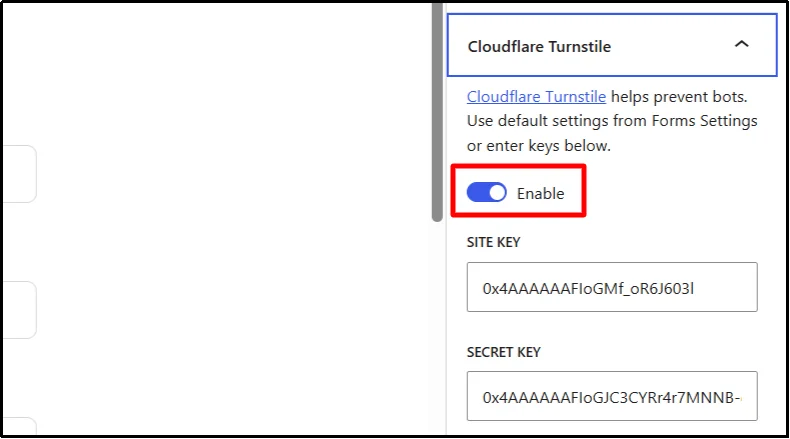
- Make sure the Toggle Turnstile is On.
If you have already configured Turnstile through Global Settings, the saved values can appear in the form settings automatically. Changes made at the form level apply to that specific form.
This gives you two ways to manage WordPress form spam protection:
Global settings: Use the same Turnstile configuration across your forms.
Individual form settings: Adjust protection for a specific form when your site needs different configurations.
Step 6: Publish and Test Your Form
After enabling Turnstile, preview or publish the form and test it from the frontend.
Check the complete submission flow:
- Open the page containing the form.
- Confirm that the Turnstile verification loads.
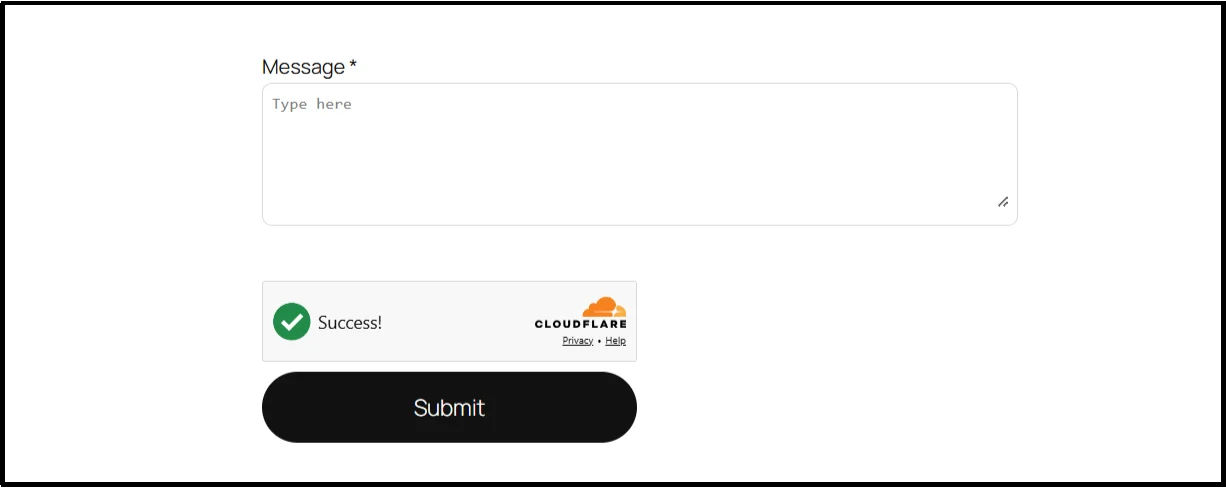
- Complete the form normally and submit the form.
- Confirm that the submission succeeds.
- Check that the expected confirmation message or redirect appears.
- Confirm that the form notification arrives.
A Turnstile integration is not complete simply because the widget appears. Cloudflare requires server-side validation of the token before the protected action is accepted.
What Happens When Someone Submits a Turnstile-Protected Form?
The important part of Turnstile happens beyond the visible form.
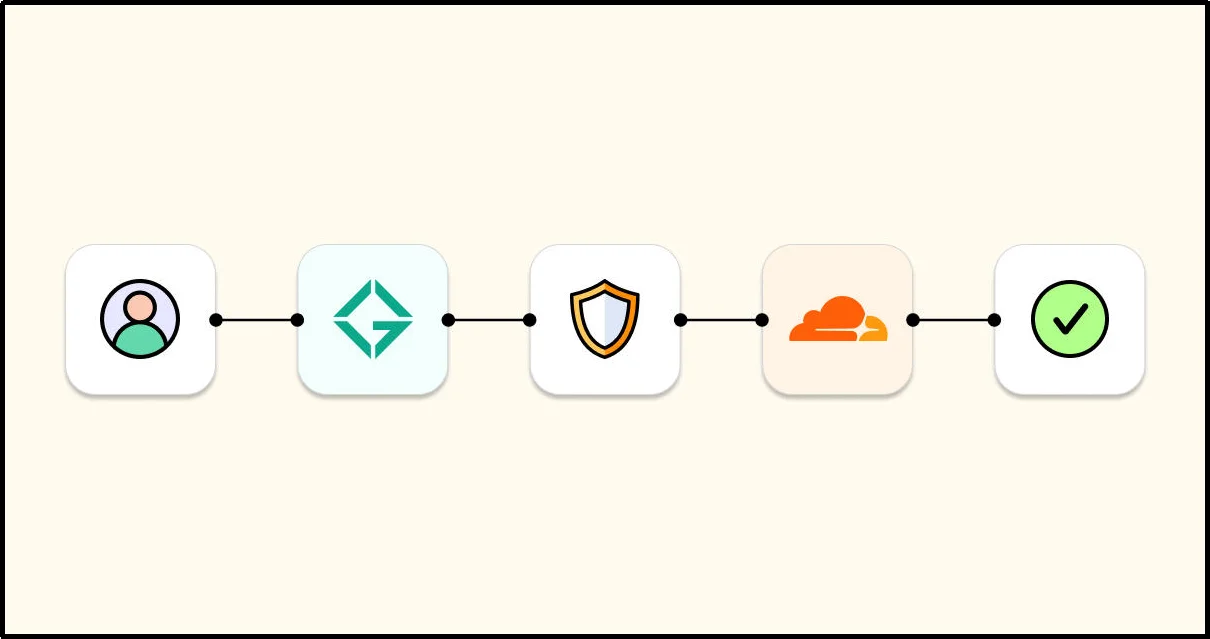
The flow looks like this:
Visitor opens form
↓
Turnstile runs its verification
↓
Turnstile generates a token
↓
Form submits the token
↓
Server validates the token with Cloudflare
↓
Cloudflare returns success or failure
↓
Gutena Forms processes or rejects the submission
Cloudflare’s Siteverify API validates the token on the server. Each token expires after 300 seconds and can only be validated once. Reusing an expired or previously validated token can trigger the timeout-or-duplicate error.
This is why the Secret Key belongs on the server side. It is part of the validation process and should never become publicly accessible.
For a WordPress user, Gutena Forms handles the integration details behind the scenes. You configure the keys and enable Turnstile rather than manually coding the API request.
Cloudflare Turnstile vs reCAPTCHA
Cloudflare Turnstile and Google reCAPTCHA both aim to distinguish legitimate visitors from automated traffic, but their implementations and user experiences differ.
| Feature | Cloudflare Turnstile | Google reCAPTCHA |
| Primary purpose | Bot and abuse protection | Bot and abuse protection |
| Traditional visual puzzles | Designed to avoid them | Depends on the reCAPTCHA version and risk assessment |
| Site key and secret key | Yes | Yes |
| Invisible options | Yes | Available depending on version |
| WordPress support | Available through supported plugins | Widely supported by WordPress plugins |
| Server-side verification | Required | Required |
| Free option | Yes | Product and usage terms vary |
| Cloud provider | Cloudflare |
If you’re already using Google reCAPTCHA successfully, there may be no reason to switch simply because Turnstile exists. If you want a CAPTCHA alternative with a different verification model and a low-friction visitor experience, Turnstile is worth considering.
How to Troubleshoot Cloudflare Turnstile in WordPress
If Cloudflare Turnstile doesn’t load or blocks legitimate form submissions, check the configuration before changing your form settings.
Turnstile Widget Doesn’t Appear
- Confirm that Turnstile is enabled in Gutena Forms.
- Check that the Site Key matches the widget you created in Cloudflare.
- Confirm that your widget allows the hostname where the form runs.
- Check browser console errors and network requests for blocked Turnstile resources.
Invalid or Expired Token Errors
Turnstile tokens expire after five minutes and work only once. If a visitor submits an expired or previously used token, verification can fail. Ask the visitor to reload the form or complete verification again.
Form Submissions Fail After Enabling Turnstile
- Verify that the Site Key and Secret Key belong to the correct widget.
- Check whether a security plugin, firewall, or Content Security Policy blocks Turnstile requests.
- Test the form in a clean browser session to rule out browser extensions or cached scripts.
- Check whether the problem affects one form or every form on the website.
If the issue persists, review the relevant error messages and contact Gutena Forms support with the details. Never share your Secret Key in a public support request.
Best Practices for WordPress Form Spam Protection
Cloudflare Turnstile adds a layer of WordPress form spam protection, but it won’t stop every unwanted submission. Combine CAPTCHA alternatives with input validation, honeypot protection, and appropriate submission limits to strengthen your form’s defenses.
A stronger WordPress form setup combines several controls where they make sense.
Use Turnstile for automated traffic: Use Turnstile as a bot verification layer to help detect and block automated submissions.
Add honeypot protection: Use a hidden honeypot field to catch automated scripts that fill out every form field. Gutena Forms includes built-in honeypot protection alongside Turnstile and reCAPTCHA.
Validate form inputs: Continue validating required fields, email addresses, numbers, dates, file uploads, and other field-specific requirements.
Keep your Turnstile Secret Key private: Use the Site Key on the client side and keep the Secret Key private for server-side token validation.
Test the actual submission flow: Submit a real test entry and verify the complete process, from Turnstile verification to form processing and email notifications.
Don’t treat Turnstile as email deliverability protection: Turnstile protects the form submission process, not email delivery. If notifications don’t arrive, check SMTP settings, sender authentication, hosting restrictions, and recipient filtering.
Stop WordPress Form Spam with Cloudflare Turnstile and Gutena Forms
Cloudflare Turnstile gives WordPress site owners another way to protect forms from automated submissions.
The integration is simple.
Create your Turnstile widget in Cloudflare, copy the Site Key and Secret Key, add them under Gutena Forms → Settings → Spam Protection → Cloudflare Turnstile, and enable the protection for your form.
Because Gutena Forms works inside the WordPress block editor, you can build the form and configure its anti-spam protection within the same WordPress workflow. It also gives you other protection options, including Google reCAPTCHA and honeypot protection.
If your goal is to reduce automated form submissions while keeping the submission process straightforward for legitimate visitors, Cloudflare Turnstile integration with Gutena Forms gives you a practical way to add that protection without manually coding the Turnstile API.
Get Gutena Forms now and keep automated form spam under control with built-in Turnstile protection.
Frequently Asked Questions
Is Cloudflare Turnstile Free?
Yes. Cloudflare offers a Free Turnstile plan with up to 20 widgets, all widget types, unlimited challenges, and up to 10 hostnames per widget. Cloudflare also offers an Enterprise plan for larger deployments.
Is Cloudflare Turnstile GDPR Compliant?
Cloudflare states that Turnstile processes data needed for security and does not access, store, or transmit user communications or form entries. However, GDPR compliance also depends on your website’s configuration, privacy practices, legal basis, and other services you use.
Can I Use Cloudflare Turnstile and reCAPTCHA on the Same Form?
Gutena Forms supports Cloudflare Turnstile and Google reCAPTCHA as form spam protection options. Choose the method that best fits your site.
Does Cloudflare Turnstile Slow Down My Website?
Turnstile loads client-side resources, adding an external dependency to pages where it runs. Its Managed, Non-Interactive, and Invisible modes offer different user experiences. Test your actual form page to measure any performance impact.
Can I Use Cloudflare Turnstile on a WordPress Contact Form?
Yes. Turnstile can protect WordPress contact forms when the form plugin supports it and validates tokens correctly. Gutena Forms includes built-in Turnstile integration through its anti-spam settings.
What Is a Cloudflare Turnstile Site Key?
The Site Key is the public identifier used to load and identify your Turnstile widget. It differs from the Secret Key, which handles server-side token validation.
What Is a Cloudflare Turnstile Secret Key?
The Secret Key is a private credential used to validate Turnstile tokens through Cloudflare’s Siteverify API. Never expose it in front-end code.
Can Cloudflare Turnstile Stop All WordPress Form Spam?
No. Turnstile helps block automated submissions but cannot prevent every type of spam. For stronger protection, combine it with tools such as honeypots, input validation, rate controls, and submission monitoring. Gutena Forms supports Turnstile, reCAPTCHA, and honeypot protection.