
Every time a visitor fills out a contact form on your WordPress site, that information represents a potential lead, a customer question, or a business opportunity. Yet many website owners rely solely on email notifications to receive these submissions, and when emails fail, those opportunities vanish. When you save contact form submissions directly to your WordPress database, you create a reliable backup of every entry and reduce the risk of losing valuable leads due to email delivery failures.
In this guide, you’ll learn why storing form submissions in a database matters, how WordPress form storage works, and exactly how to save contact form data in WordPress using a native block editor form builder.
Why You Should Save Contact Form Data in WordPress
Most WordPress contact forms are configured to send submission details via email. While email notifications are useful, they are not a reliable long-term storage solution. Here’s why you need a WordPress contact form database instead.
According to multiple email deliverability studies, transactional emails can fail due to SMTP misconfigurations, DNS issues, mailbox filtering, or hosting restrictions. Saving form submissions in your WordPress database creates a secondary record that protects valuable customer data even when email delivery problems occur.
Prevent Lost Leads and Customer Inquiries
Email delivery is not guaranteed. Messages can end up in spam folders, get blocked by email providers, or simply fail to send due to server misconfigurations. When you rely solely on email for form submissions, you’re gambling with your leads.
Storing submissions directly in your WordPress database eliminates this risk. Even if your email notification fails, the submission remains safely stored and accessible from your dashboard.
Access Form Submissions Anytime
When form data lives only in your email inbox, you’re forced to search through hundreds or thousands of messages to find a specific submission. A WordPress form entries database gives you instant access to all submissions in one centralized location.
With a proper entry management system, you can view, search, filter, and organize submissions without ever leaving your WordPress dashboard.
Improve Team Collaboration and Workflow
A shared WordPress contact form submissions database allows multiple team members to view, assign, and manage entries efficiently. Team members can add internal notes, update entry statuses, and track follow-up actions within the WordPress admin area.
Maintain Records for Compliance and Reporting
Many businesses are required to retain customer communication records for regulatory or auditing purposes. Emails can be deleted accidentally or lost when employees leave. A form submission storage system in WordPress ensures your data remains preserved in a structured, searchable format that you can export for reporting and analysis.
Where Are Contact Form Submissions Stored in WordPress?
Understanding where form data goes after submission is key to choosing the right setup for your site.
Forms That Only Send Email Notifications
Many basic form plugins, including the popular Contact Form 7, send submissions exclusively via email by default. By default, many form plugins send submission details through email without storing them in the WordPress database. If the email fails and no database storage solution is configured, you may lose the submission permanently.
Forms That Save Entries to the Database
Modern form builders offer built-in database storage. When a form is submitted, the plugin creates a record in your WordPress database containing all field values, submission timestamps, and often additional metadata, such as the submitter’s IP address.
For example, Gutena Forms securely stores every submission in your WordPress dashboard and includes a built-in form entry database. It also includes built-in spam protection, form validation, and entry management tools that help you manage submissions from one dashboard.
Understanding WordPress Form Entry Storage
When a form plugin saves entries to the database, it typically creates custom database tables or uses WordPress’s existing table structure. Each submission becomes a row in the database, with columns representing each form field. This format makes it easy to search, filter, and export your data.
Requirements for Saving Contact Form Data to a WordPress Database
Getting started with database storage for your forms requires just three components.
A Self-Hosted WordPress Website
You need a self-hosted WordPress website (WordPress.org) to save contact form data to a database. Most WordPress hosting plans include a MySQL or MariaDB database that stores your website content, settings, and form entries. You’ll also need administrator access to install and configure your chosen form plugin.
A Contact Form Plugin
You need a form builder plugin that integrates with your WordPress site. While any form plugin can collect data, not all of them save submissions to the database. For this guide, we will use Gutena Forms, which automatically saves the entire WordPress database.
Database Entry Storage Feature
This is the critical feature. Your chosen form plugin must either include built-in entry storage or support an add-on that provides it. Gutena Forms includes a full entry management dashboard with advanced filters, tags, status management, and entry notes.
Step-by-Step Process to Save Contact Form Data to a WordPress Database Using Gutena Forms
Gutena Forms is a lightweight WordPress form builder that works natively in the block editor (Gutenberg). It offers a seamless way to save contact form entries in WordPress without any coding. Follow these steps to set up database storage for your forms.
Step 1: Install and Activate Gutena Forms
- From your WordPress dashboard, navigate to Plugins → Add Plugin
- Search for “Gutena Forms“
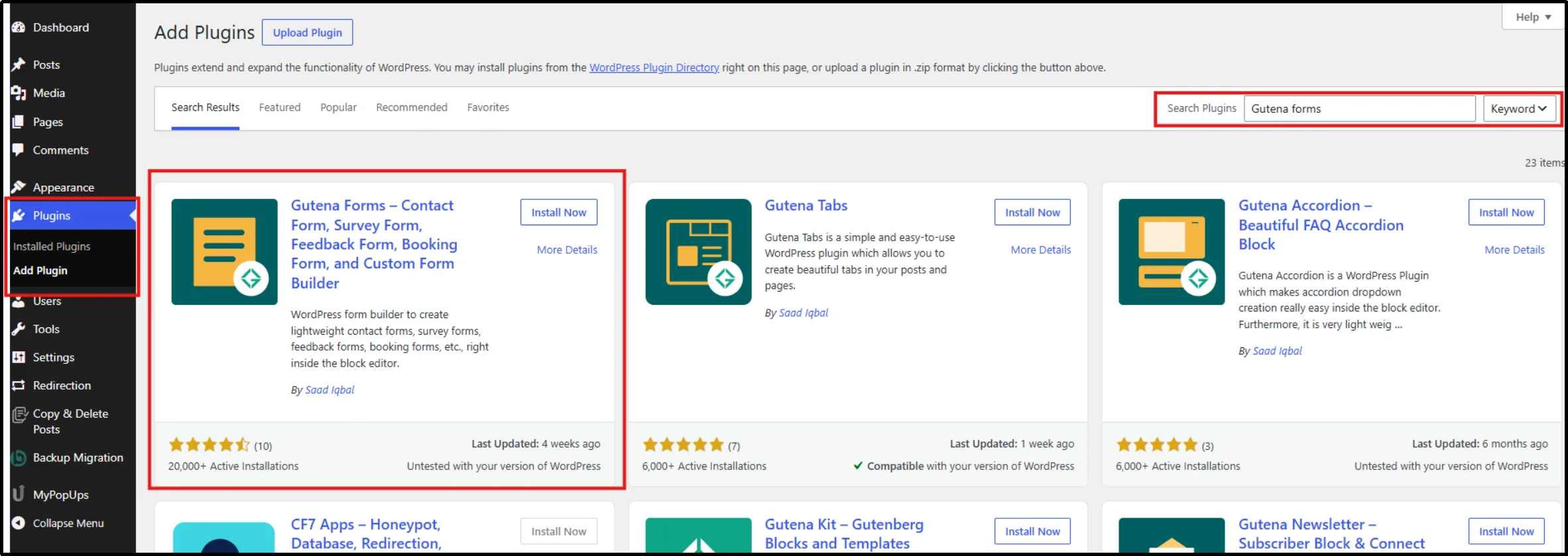
- Click Install Now, then Activate.
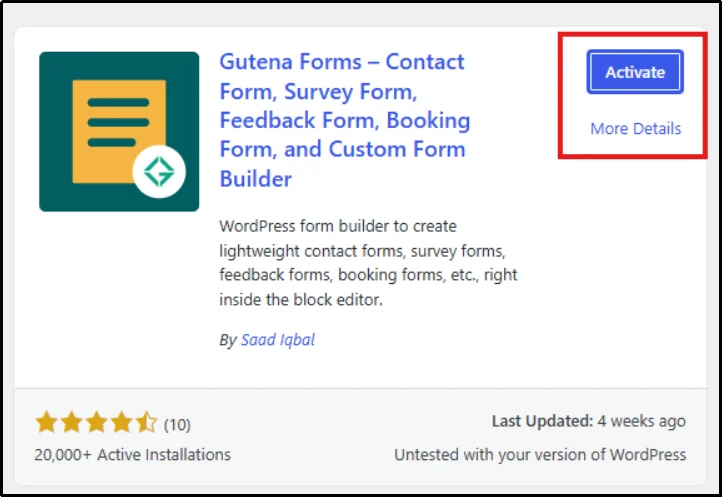
The free version includes core form-building features, while the Pro version unlocks the entry management dashboard, advanced filters, tags, status management, and entry notes.
Step 2: Create a Contact Form
- Create a new post or page, or edit an existing one.
- Click the “+” (block inserter) and search for “Form.”
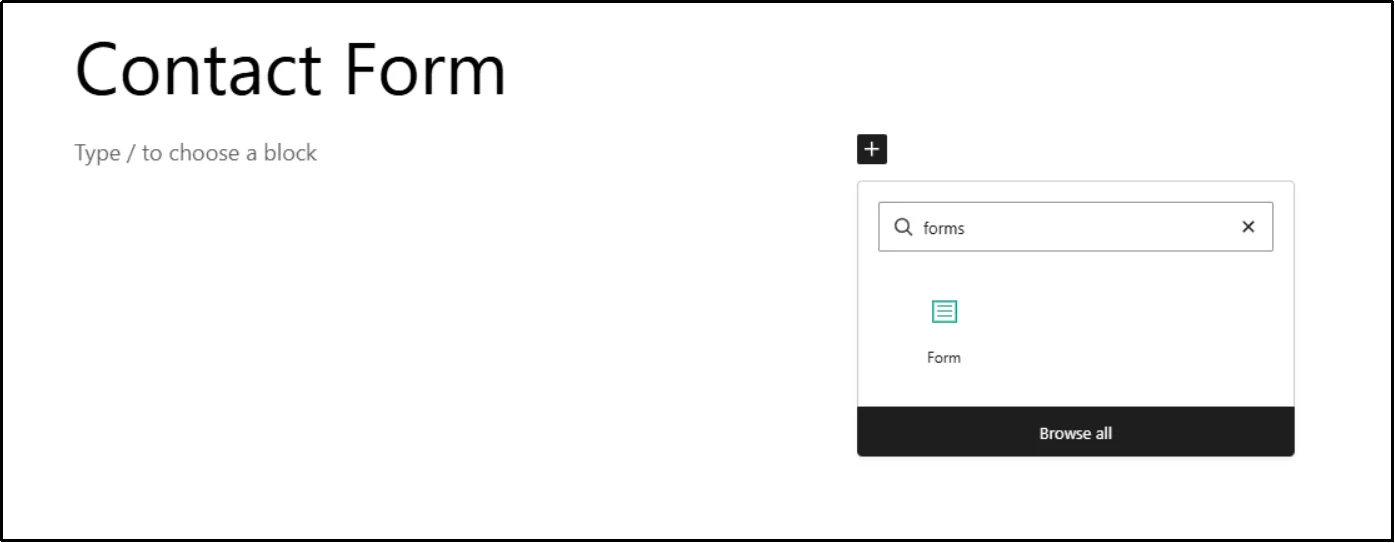
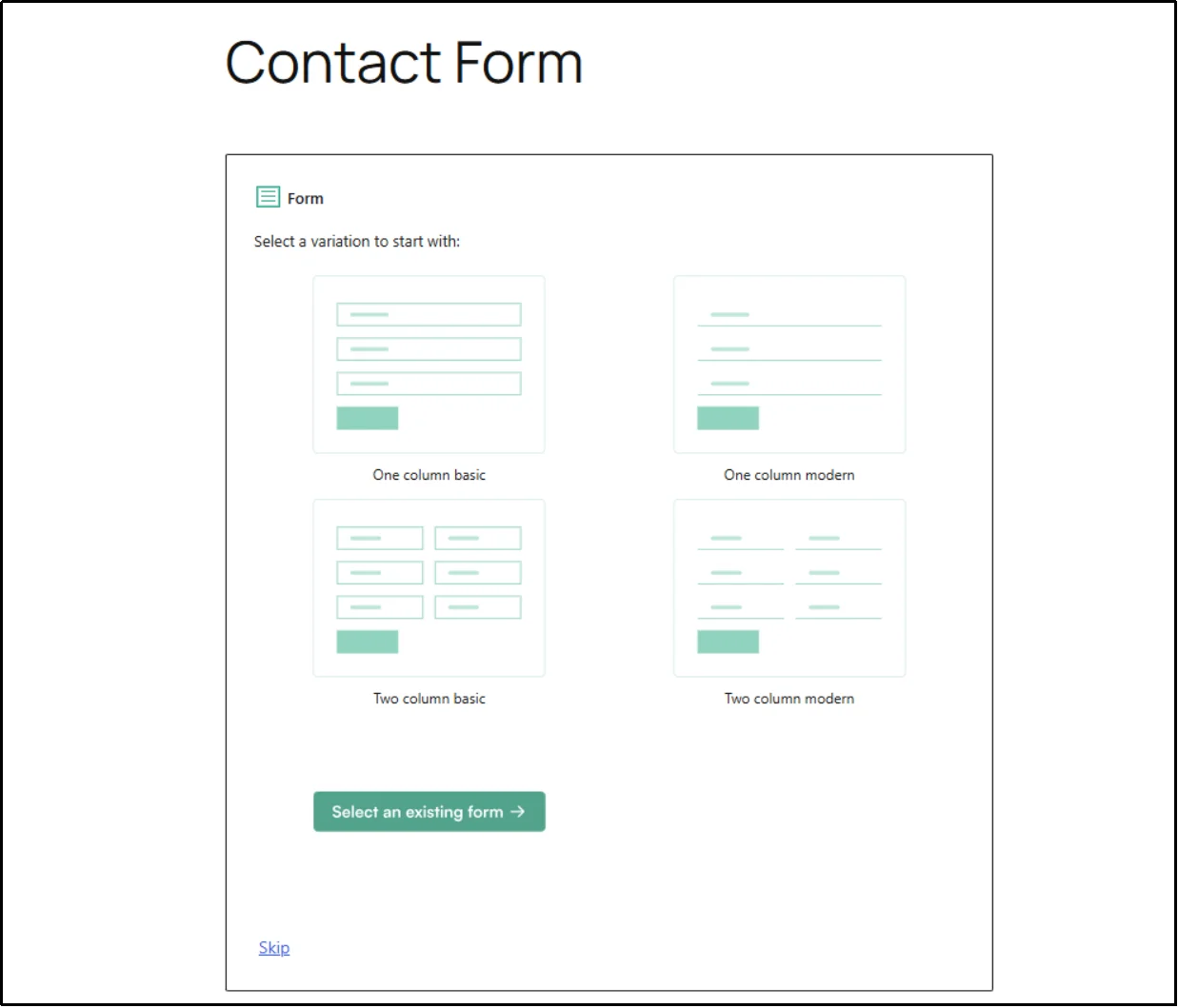
- Once the block is added, you will see a variation of form layouts. Select any layout.
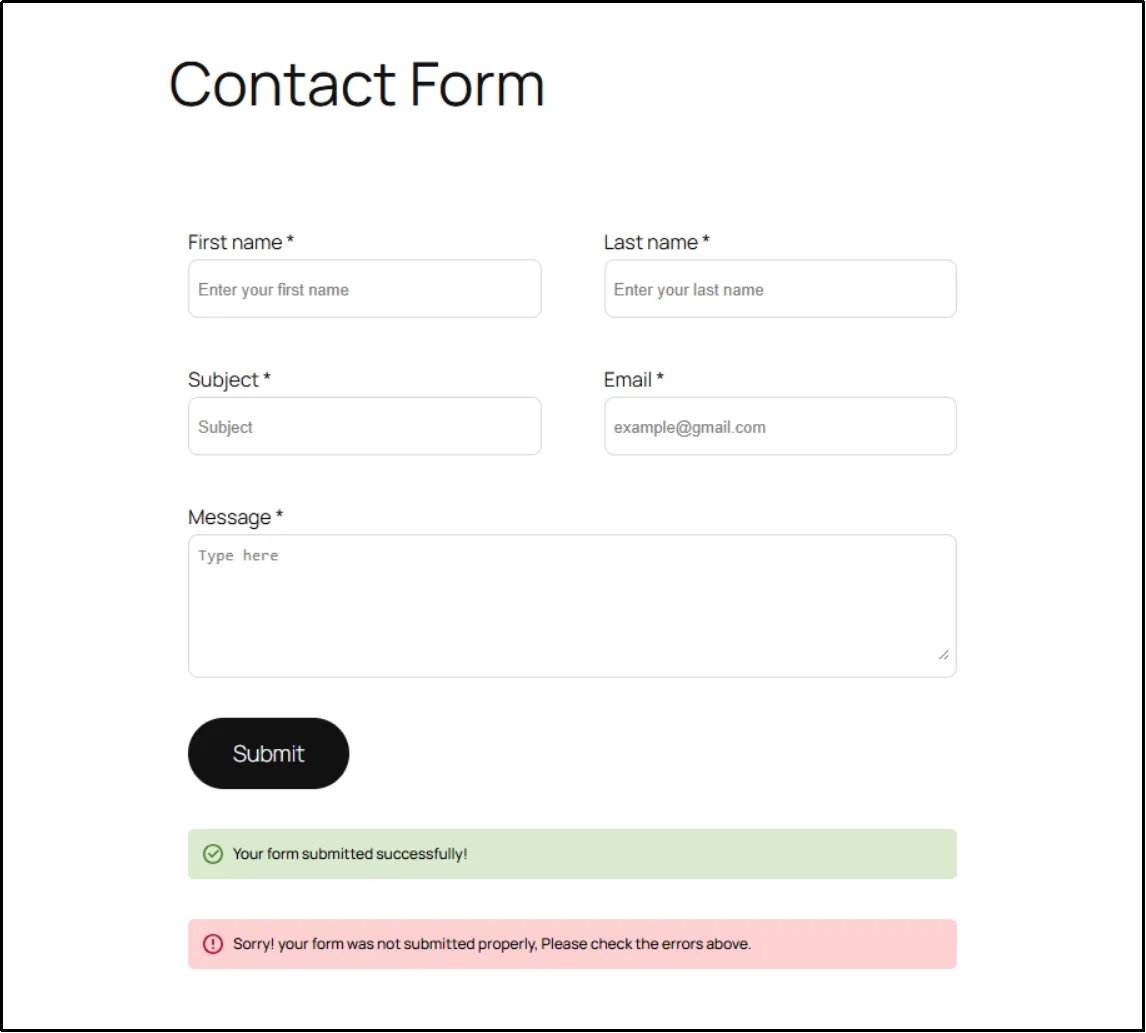
- Form fields will appear, such as Text, Email, Number, Text Area, Dropdown, Radio, and Opt-in Checkbox for privacy and terms.
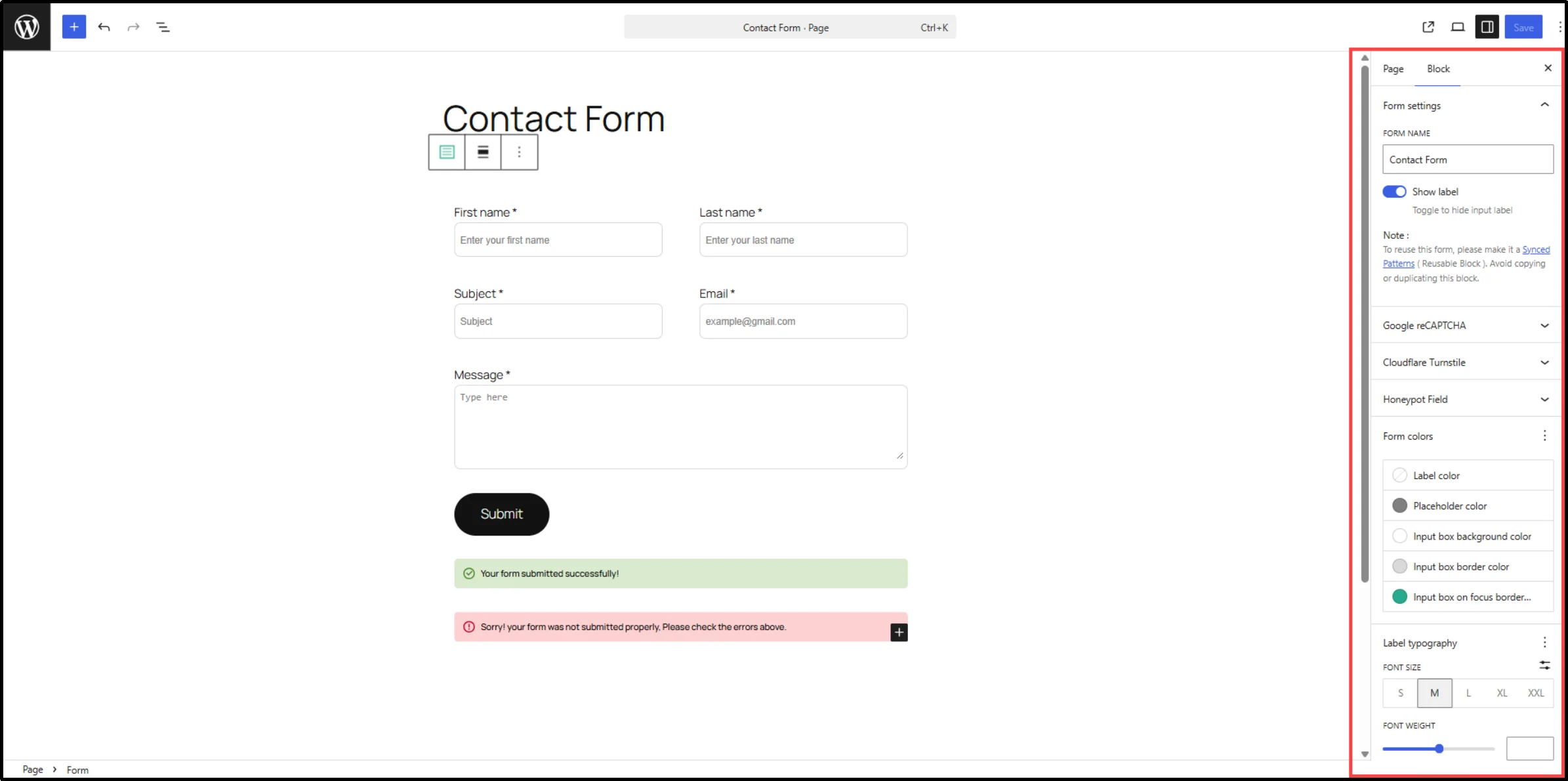
- Configure field validation, styling, and layout directly within the block editor.
Step 3: Enable Entry Storage
Gutena Forms automatically stores every submission when a visitor completes and submits a form. You don’t need to configure additional database settings or install a separate entry storage add-on.
To check Entries, go to Gutena Forms → Entries. For each entry, you’ll see Entry ID, Form Name, First Value, Status, Date & Time, and Action. etc.
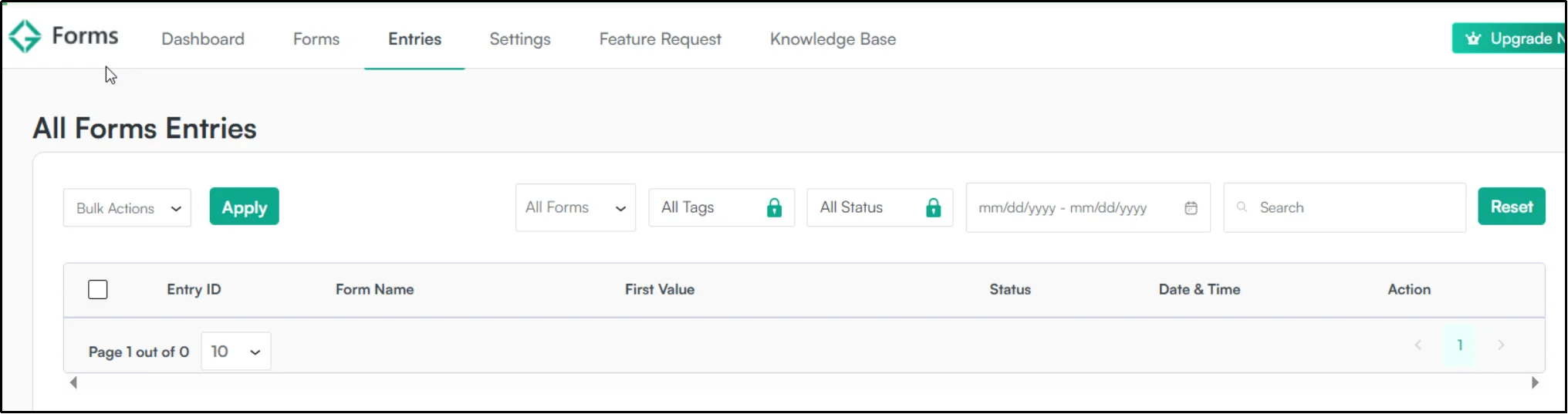
Entry management, advanced filters, tags, and status management are available in Gutena Forms Pro.
Step 4: Publish the Contact Form
Once your form is built and configured, publish your post or page. Your contact form is now live and ready to accept submissions.
Step 5: Submit a Test Entry
Before going live, test your form:
- Visit the published page.
- Fill out the form and submit it.
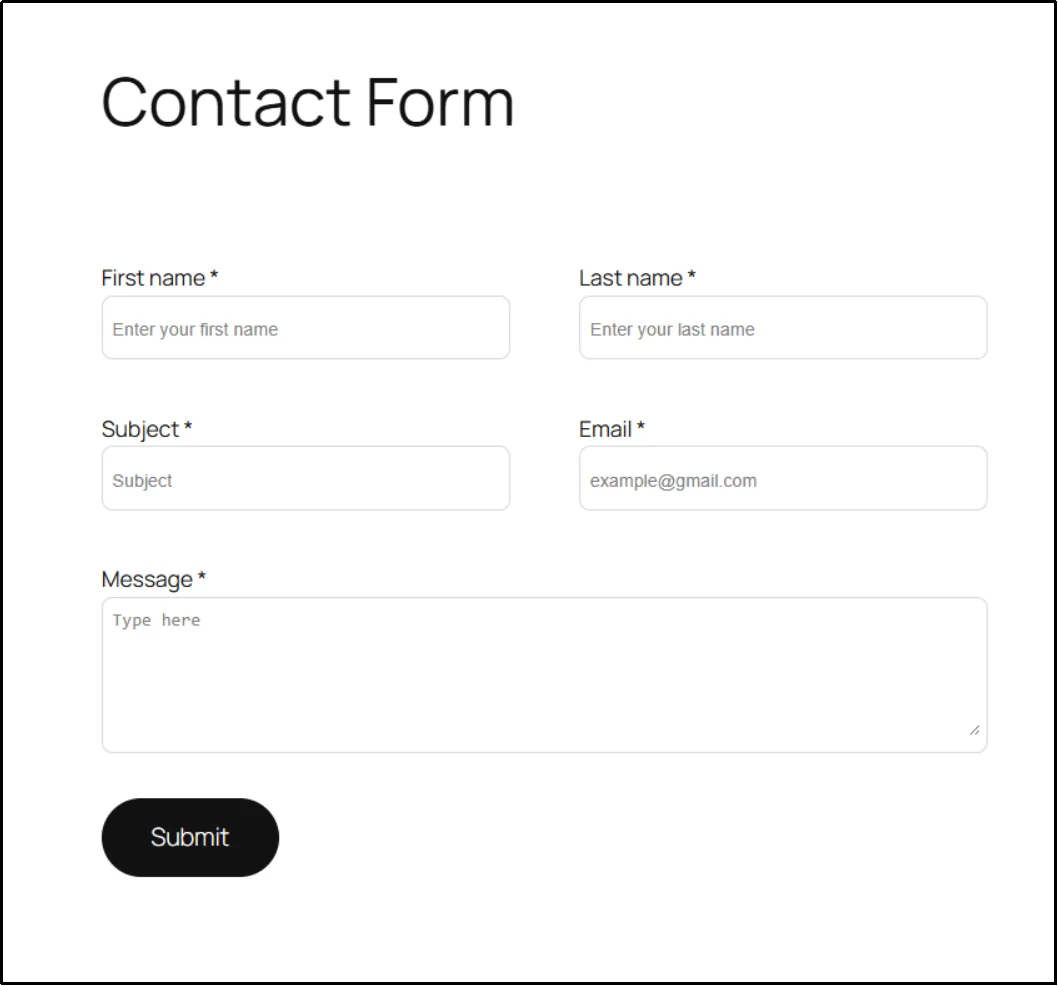
- Check that you receive the email notification (if configured).
- Verify that the submission appears in your form entries section and is stored correctly in your WordPress database.
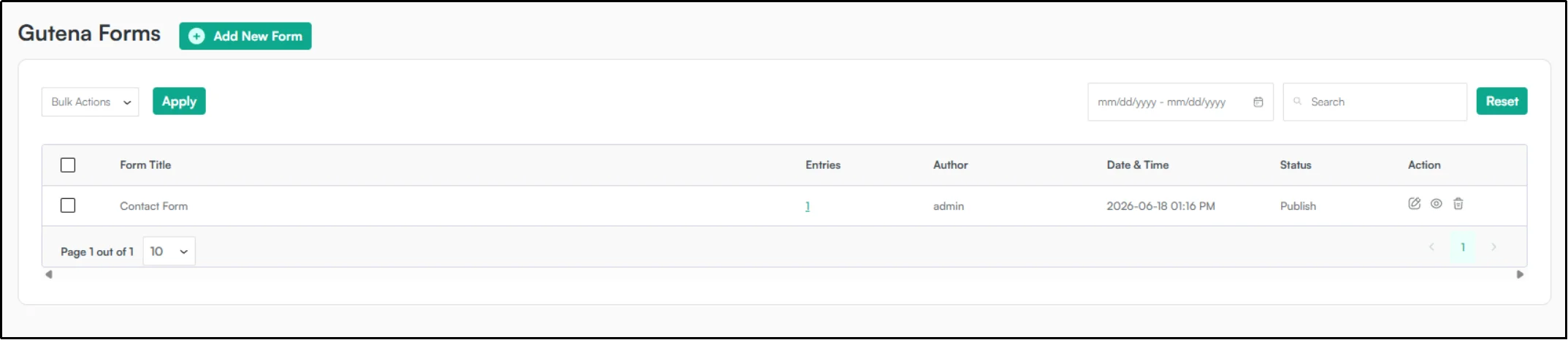
Step 6: View Saved Form Entries
- From your WordPress dashboard, navigate to the Gutena Forms entry management section.
- You’ll see a list of all WordPress form submissions with details including:
- All field values
- Submission date and time
- Entry status
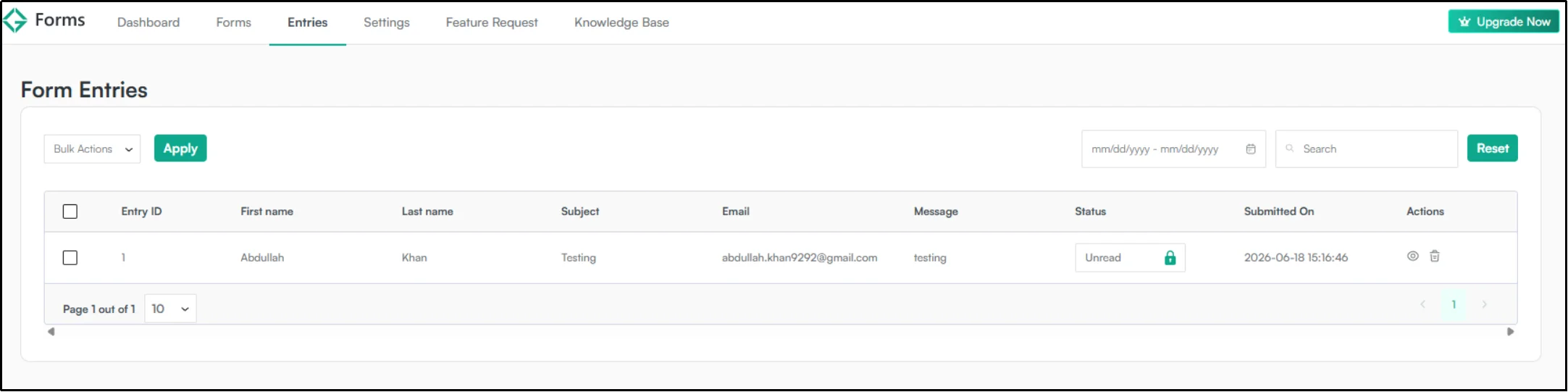
With Gutena Forms Pro, you can also add internal Entry Notes to any submission to track follow-ups, customer details, or workflow updates so you never need to hunt through emails again.
How to Manage Saved Contact Form Entries in WordPress
Once your WordPress contact form submissions are saved to the database, effective management becomes essential.
Search and Filter Submissions
Gutena Forms Pro includes advanced entry filters that let you search and filter submissions by date, form, status, or tags. This makes it easy to find specific entries quickly, even with thousands of submissions.
Mark Entries by Status
Organize your workflow by assigning statuses to each entry, such as New, In Progress, Resolved, or Follow-up Required. Status management helps teams track which submissions have been handled and which still need attention.
Delete Unwanted Entries
Spam submissions and test entries can clutter your database. Use the delete function to remove unwanted entries and keep your WordPress form entries database clean and organized.
Best Practices for Storing Contact Form Data
Follow these best practices to ensure your WordPress contact form database remains secure, performant, and compliant.
Enable Spam Protection
Spam submissions can quickly fill your database with junk data. Gutena Forms includes multiple spam protection layers:
- Google reCAPTCHA integration
- Cloudflare Turnstile integration
- Honeypot spam protection
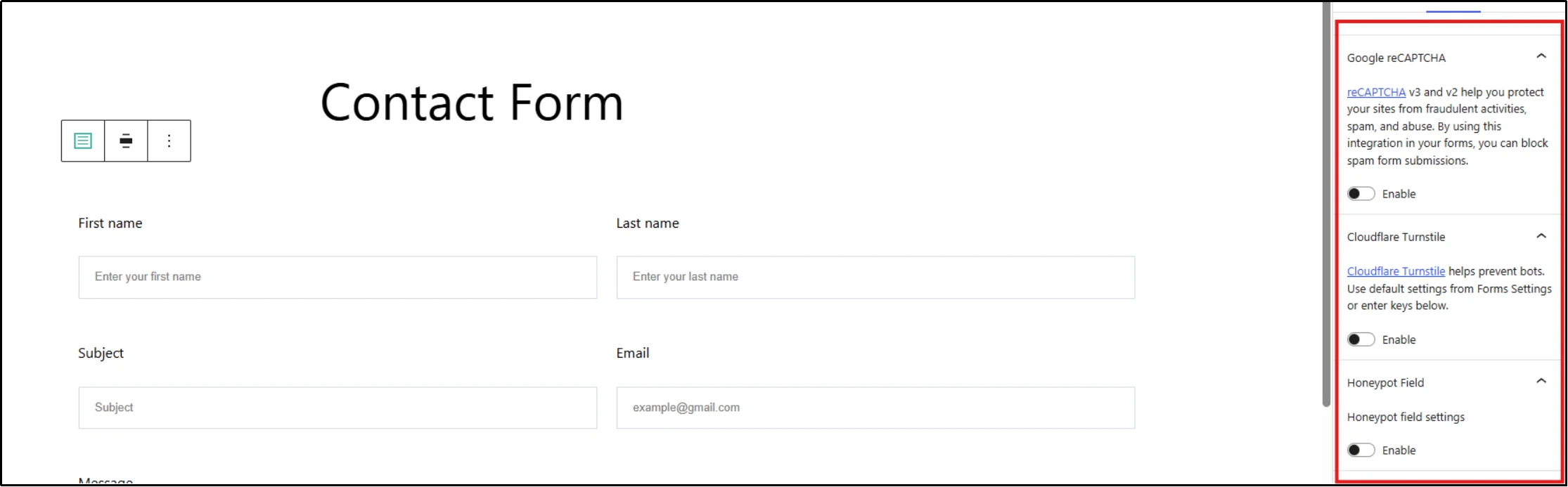
Enable at least one of these options to block automated spam submissions.
Limit Data Collection to Necessary Information
Collect only the data you actually need. Every additional field increases storage requirements and may raise privacy concerns. Review your form fields periodically and remove any that aren’t essential.
Back Up Your WordPress Database Regularly
If your site receives a high volume of submissions, schedule automated backups and test restoration procedures periodically. A backup is only useful if you can successfully restore it when needed.
Follow Privacy and GDPR Requirements
If you collect personal data from users, you must comply with privacy regulations such as the GDPR. Gutena Forms includes an opt-in checkbox field for privacy and terms of consent, helping you collect documented consent before storing personal information submitted through your forms.
For more guidance on GDPR-compliant form building, check out the 9 Best GDPR-Compliant WordPress Form Builders in 2026.
Common Issues When Saving Contact Form Data
Even with the best setup, you may encounter occasional problems. Here’s how to troubleshoot them.
- Entries Not Appearing in the Database
Verify that you’re using a version of your form plugin that supports database storage. Entry storage is available in the Pro version of Gutena Forms. Also verify that your website’s database connection is functioning properly and that no security or optimization plugin is interfering with form submissions.
- Form Submissions Not Being Received
Test your form regularly. If email notifications fail, your database entries still preserve the data, which is exactly why database storage matters.
- Spam Entries Filling the Database
Enable spam-protection features such as reCAPTCHA, Turnstile, or a honeypot. Regularly review and delete spam entries using the entry management dashboard.
- User Permission and Access Problems
Configure user roles and permissions so that only authorized team members can view, edit, or delete form entries. Gutena Forms Pro includes user access control features.
Conclusion
Storing contact form submissions in your WordPress database gives you a reliable record of every lead, inquiry, support request, and customer message. Even if email notifications fail, you can still access, manage, and export your form data from a centralized location.
Gutena Forms makes this process simple and intuitive. As a native block editor form builder, it lets you create stunning, responsive forms without leaving the WordPress editor. With Gutena Forms Pro, you unlock a comprehensive entry management dashboard featuring advanced filters, tags, status management, entry notes, and export capabilities.
By combining email notifications with database storage, you can protect valuable customer information and create a reliable record of every form submission. Whether you run a small business website or manage enterprise-level lead generation, database storage helps you keep your form data organized, accessible, and secure.
Frequently Asked Questions
Does WordPress save contact form submissions automatically?
Not by default. WordPress does not automatically save form submissions unless your form plugin includes database storage functionality. You need a plugin like Gutena Forms that explicitly saves entries to the WordPress form entries database.
Where can I view saved contact form entries?
Saved entries are accessible from your WordPress dashboard within your form plugin’s entry management section. With Gutena Forms Pro, you can view all submissions in a dedicated entries dashboard.
Can I export form submissions to CSV?
Yes. Gutena Forms Pro includes export functionality that allows you to export form entries to CSV files for analysis, reporting, or data migration.
What happens if email notifications fail?
When email notifications fail, your form submissions remain safely stored in your WordPress contact form database.
Is it safe to store contact form data in WordPress?
Yes, provided you follow security best practices: keep WordPress and plugins updated, use strong passwords, enable spam protection, and perform regular database backups. Gutena Forms stores entries securely inside your WordPress database.
How long should I keep form submissions?
Retention policies vary by business type and jurisdiction. Some businesses keep submissions for 12–24 months, while others retain them indefinitely for compliance purposes. Delete old entries periodically to keep your database performant.
Can I save Contact Form 7 submissions to the database?
Yes. Contact Form 7 does not store submissions by default, but you can add database storage functionality through compatible extensions or use a form builder that includes built-in entry management.
Does saving form entries affect website performance?
In most cases, no. Form submissions generate relatively small amounts of data. However, websites that receive thousands of submissions each month should periodically archive or delete old entries and optimize their database.
Can I recover lost form submissions?
If your form plugin stores entries in the database, you can usually recover submissions even when email notifications fail. If the plugin does not save entries and the email was lost, recovery may not be possible.